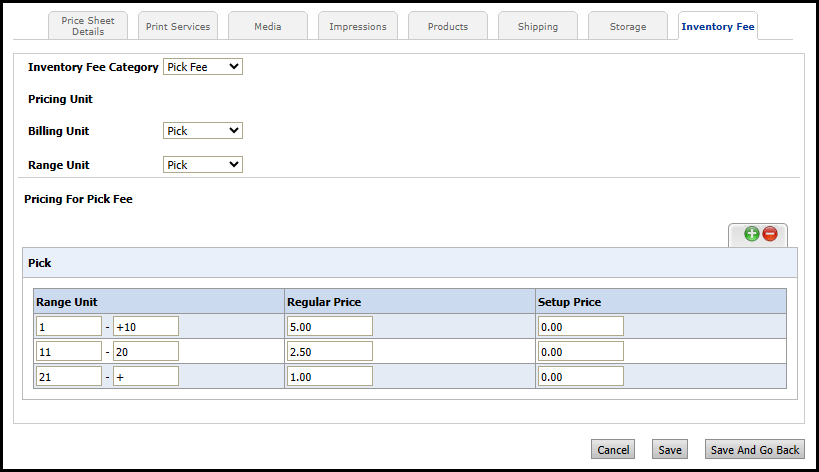
Inventory Fees are additional fees placed on Fulfillment products. As of now, the only Inventory Fee available is the Pick Fee.
Pick Fee is a charge applied to Fulfillment or Rental products when a warehouse worker physically retrieves, or picks, the item from storage to fulfill an order. It is most common in third-party logistic scenarios where a warehouse stores inventory on behalf of another company and charges them for fulfillment labor.
MarketDirect Fulfillment defines a pick by the number of unique skids, or storage locations, a picker must access. For example, if two units of the same item are on separate skids, that counts as two picks. If both units are on the same skid, that counts as one pick.
1 Go to Administration > Pricing.
2 Select the radio button for the price sheet you want to edit from the Price Sheet table.
This price sheet will need to be assigned to the company with Pick Fees enabled in order for pick fee charges to occur.
3 Click Open.
4 Choose Additional Inventory Operation from the View By drop-down list.
The Additional Inventory Operation option and the Inventory Fee tab will only be available if you have a license for MarketDirect Fulfillment.
5 Choose Pick Fee from the Inventory Fee Category drop-down list.
Pick Fee is currently the default, because it is the only option available.
6 Choose a billing unit from the drop-down list.
Options include Pick, Order, and Line Item.
7 Choose a range unit from the drop-down list.
Options include Pick, Order, and Line Item. These options will change depending on the billing unit selected.
8 Pick configurations guide (Billing Unit / Range Unit):
● Pick / Pick: Fee is calculated based on the number of picks, or skids accessed by the picker. The pick fee is applied per pick within the range defined in the price sheet.
For example, if the price sheet includes a Range Unit of 1-10 with a Regular Price of $5.00, and the customer places an order that requires three picks, then the pick fee will be $15.00.
● Order / Order: Fee is calculated as a flat charge per order. If you select this configuration, the range unit will always one because the customer can only place one order at a time.
For example, if the first Range Unit has a Regular Price of $20.00, then the pick fee will be $20.00. The Regular Price entered into the first row of the price sheet will always be applied to the order.
● Order / Line Item: Fee is calculated based on the number of line items in the order. The pick fee is applied per line item within the range defined in the price sheet.
For example, if the price sheet includes a Range Unit of 1-10 with a Regular Price of $5.00, and the customer places an order with five line items, then the pick fee will be $25.00.
● Line Item / Order: Fee is calculated as a flat charge per order. This configuration is the same as Order / Order.
9 Define the price ranges for the pick fee:
● Enter a Range Unit starting at 1.
The last Range Unit will only include a starting point to the range, allowing it to accommodate all values above that point.
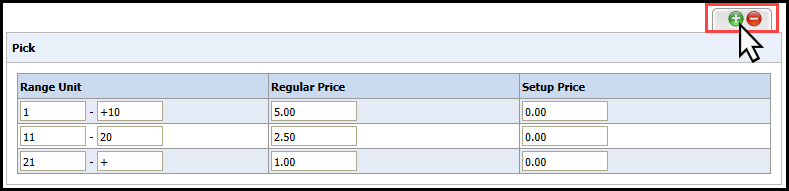
Click the plus icon to add to a new Range
Unit, and click the minus icon
to remove the last Range Unit.
● Enter the Regular Price for the range unit.
● Enter the Setup Price for the range unit.
Setup Price will only be charged once per order. If you do not want to include a Setup Price, you must enter 0 for each Range Unit.
10 Click Save.
1 Go to Administration > Companies.
2 Click the name of the company you want to edit in the Companies table.
This company will need to be assigned to the price sheet with Pick Fees configured in order for pick fee charges to occur.
3 Navigate to the Shopping Cart section.
4 Choose the Pick Fee Method from the drop-down list.
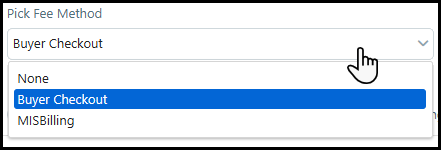
● None: Select this option to disable pick fees.
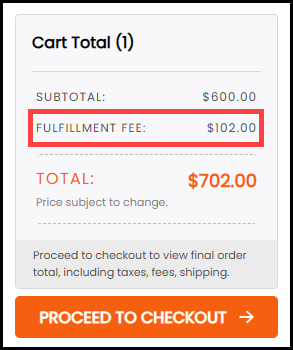
● Buyer Checkout: Select this option to enable pick fees, which will be visible to the buyer in the Shopping Cart. The pick fee will be listed as a Fulfillment Fee in the Cart Total section.
● MIS Billing: Select this option to enable pick fees, which will be billed directly to an integrated MIS.
● Start Date: Choose the start date of the month for the pick fee billing cycle.
● Bill Date: Choose the end date of the month for the pick fee billing cycle.
MIS
Billing pick fees will be accumulated
over a set billing cycle starting on the Start
Date and ending on the Bill Date.
A job invoice of the cumulative
pick fees will be sent to the MIS on the Bill
Date.

5 Click Save.