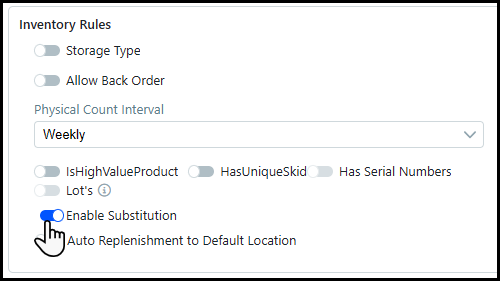
Administrators can assign substitute products to another product allowing it to be sent to the buyer in place of the original order. Substitute products are designed to replace similar discontinued or unavailable products, effectively reducing fulfillment bottlenecks.
Substitution Products are only available for FF-Inventory type products, therefore you can only assign a Fulfillment product as a substitute for another Fulfillment product.
1 Go to Administration > Products.
2 Create a new Fulfillment product or edit an existing one.
3 Select the Enable Substitution toggle on the Inventory tab.
4 Open the Substitution Product tab.
5 Click the Associate Products button to open the Select Product window.

6 Select the check-box for the products you want to associate as substitute products.
You can filter the Select Products window using the search, sort, or drop-down list available for each column. Also, you can associate as many substitute products as you want.
7 Click Done.
1 Go to Administration > Operator View.
2 Hover on the three dots for the appropriate line item.
3 Choose Substitute from the Quick Access Menu.
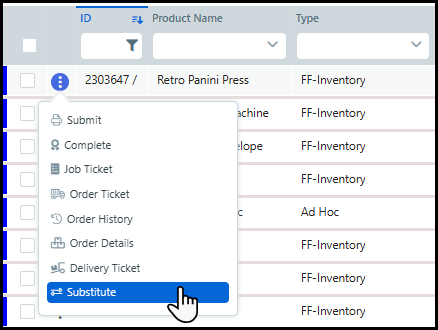
The Substitute option will only be available for products enabled for substitutions.
4 Select the substitution product from the Substitute window.
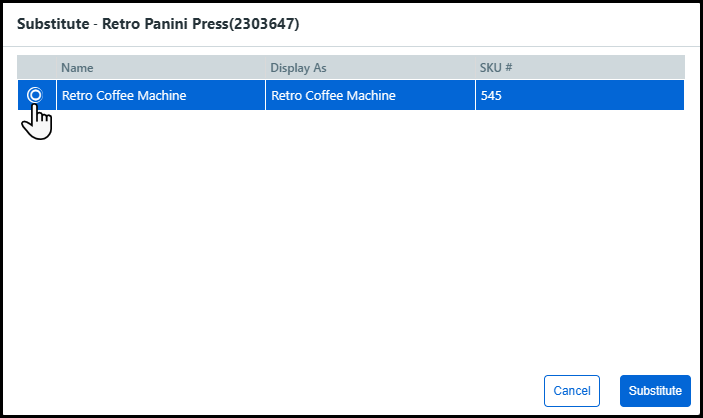
5 Click Substitute.
● The Operator View table will update the line item to the substituted product.
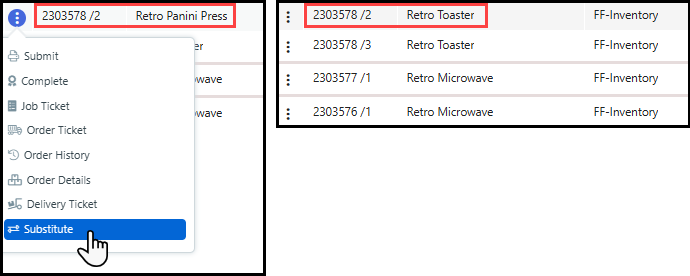
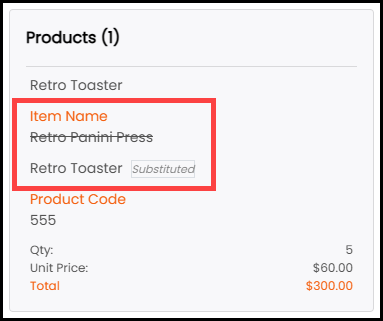
● The buyer's order confirmation will reflect the change in the Item Name section. The originally ordered product will be crossed out and the new product will be marked as Substituted. The buyer's order total will not change even if the substituted product is a different price.
1 Administrator enables substitute products for a Fulfillment product.
2 Buyer places an order for that Fulfillment product.
3 Operator selects the Substitute option from the Quick Access Menu.
4 Operator chooses the substitute product from the Substitute window.
5 The Operator View table updates the line item to the substituted product.
5 Buyer's order confirmation details update to reflect the substitution.
● Create a fulfillment or rental product
● Access job and order information with the Quick Access Menu